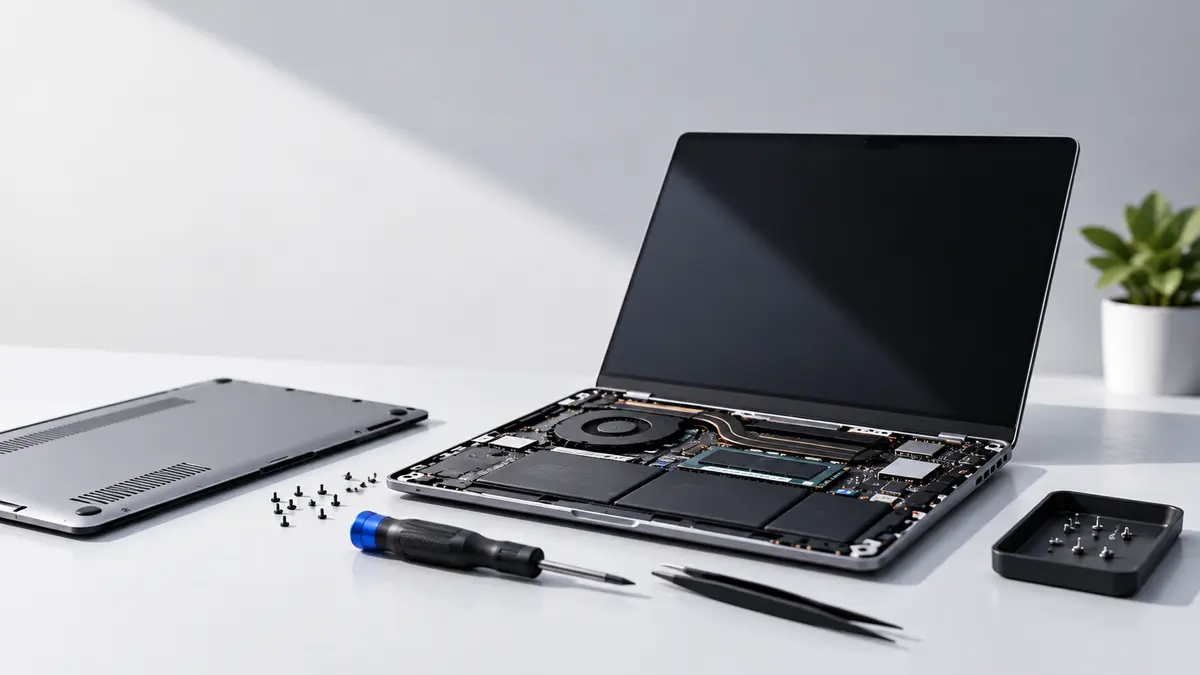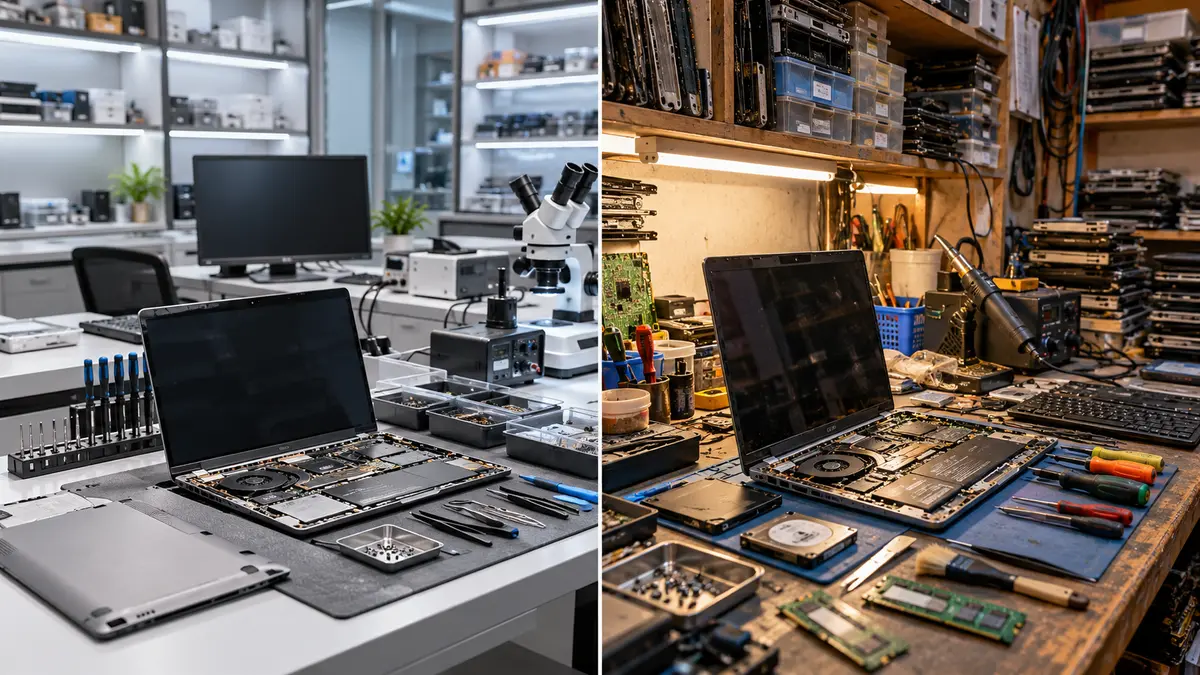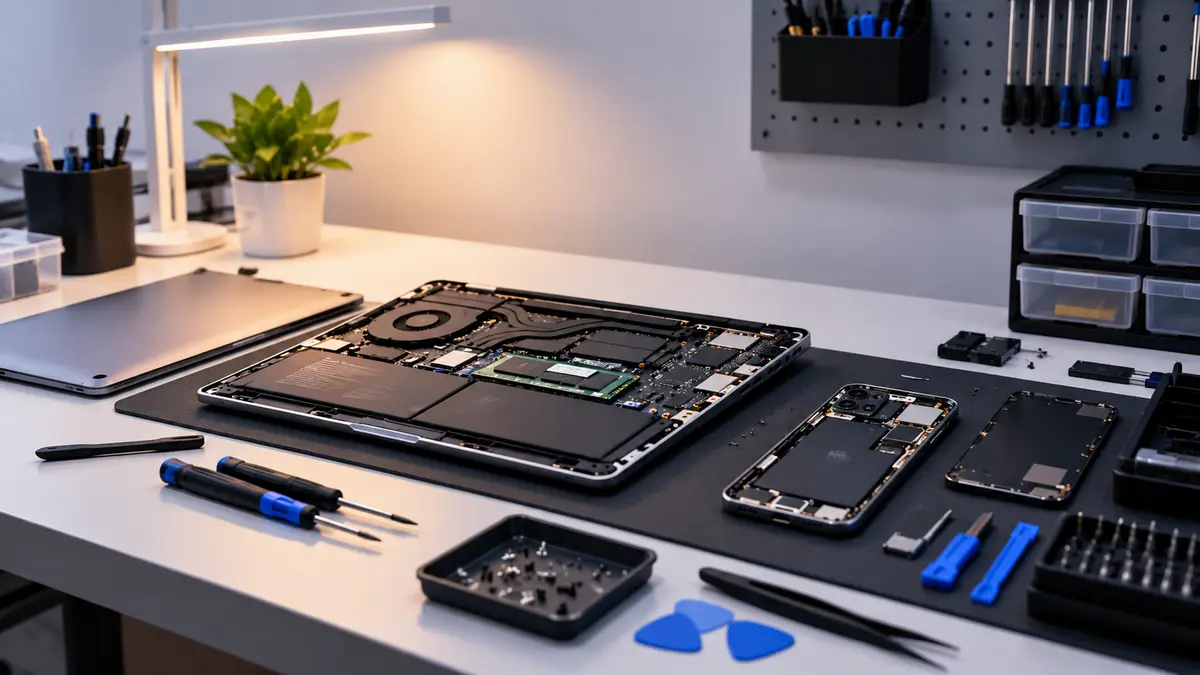
Common Laptop Problems in Nepal & How to Fix Them
Laptops have become an essential part of everyday life in Nepal. Whether you are a student, office worker, business owner, or freelancer, a laptop helps you work, study, and stay connected. However, like any electronic device, laptops can develop problems over time.
Dust, heat, power fluctuations, accidental damage, and regular wear and tear can affect laptop performance. The good news is that many common laptop problems can be prevented or resolved with a few simple steps.
In this guide, we will discuss some of the most common laptop problems in Nepal, how to fix them at home, and when you should visit a professional laptop repair service.
1. Laptop Running Slowly
A slow laptop is one of the most common problems users experience. Applications may take longer to open, the system may freeze, or the laptop may become unresponsive.
Possible causes:
Too many applications running in the background.
Insufficient RAM.
Low storage space.
An old or failing hard drive.
Unnecessary startup programs or malware.
How to fix it:
Start by restarting your laptop and closing applications you are not using. Open Task Manager on Windows to check which programs are consuming too much memory or CPU. Remove unnecessary startup applications and free up storage space.
If your laptop still runs slowly, upgrading from an HDD to an SSD can significantly improve performance. Adding more RAM may also help if your laptop supports it.
2. Laptop Overheating
Does your laptop become unusually hot, make loud fan noises, or shut down unexpectedly? These may be signs of overheating.
Dust accumulation, blocked air vents, dried thermal paste, or a faulty cooling fan can prevent proper heat dissipation.
How to fix it:
Place your laptop on a hard, flat surface.
Keep the air vents clear while using it.
Avoid using your laptop on beds, pillows, or blankets.
Close unnecessary applications that put heavy loads on the processor.
Clean the cooling system if dust has accumulated inside.
If your laptop continues to overheat, professional servicing may be necessary. A technician can inspect the fan, clean the heatsink, and replace thermal paste when required.
3. Laptop Battery Draining Quickly
Laptop batteries gradually lose capacity as they age. If your laptop battery drains unusually quickly, shuts down unexpectedly, or does not hold a charge, the battery may be worn out.
How to fix it:
Reduce screen brightness, enable battery-saving mode, and close unnecessary background applications. Check your battery health if your laptop manufacturer provides a diagnostic tool.
If the battery capacity has significantly decreased, replacing the battery may be the best solution.
Important: If the battery is swollen, stop using and charging the laptop. Do not press, puncture, or attempt to remove a damaged battery yourself. Get professional assistance.
4. Laptop Not Charging
Sometimes a laptop may not charge even when the charger is connected. The issue could be caused by a faulty adapter, damaged charging cable, loose charging port, or battery problem.
How to fix it:
First, check that the wall socket is working. Inspect the charger and cable for visible damage, and make sure the charging connector is properly connected.
If possible, test with a compatible charger that meets your laptop's required voltage, wattage, and connector specifications.
If the laptop still does not charge, the charging port, battery, or internal charging circuit may need professional inspection.
Avoid using damaged chargers or forcing a loose connector into the charging port.
5. Laptop Not Connecting to Wi-Fi
Wi-Fi problems can prevent you from attending online classes, joining meetings, or completing work.
Sometimes a laptop can detect other networks but cannot find your home or office Wi-Fi network.
How to fix it:
Restart your laptop and Wi-Fi router.
Make sure Airplane Mode is turned off.
Check whether Wi-Fi is enabled.
Update or reinstall the Wi-Fi driver if necessary.
Check whether your router is broadcasting the network on a frequency supported by your laptop.
If other devices can connect but your laptop cannot, the issue may be related to the laptop's network settings, driver, or Wi-Fi hardware.
6. Laptop Screen Is Black or Not Displaying Properly
A laptop may power on while displaying a black screen. In other cases, the screen may flicker, show lines, or remain completely blank.
Possible causes include display cable damage, a faulty screen, graphics problems, or memory-related issues.
How to fix it:
First, check whether the laptop is actually powering on. Increase the screen brightness and try the appropriate display-switch shortcut for your laptop.
If you have an external monitor, connect it to check whether the laptop produces an image externally. This can help narrow down the problem, although it does not identify the exact faulty component.
If the screen is cracked, has colored lines, or remains black despite the laptop powering on, professional diagnosis is recommended.
Avoid opening the display assembly unless you have the necessary repair experience.
7. Laptop Keyboard or Touchpad Not Working
A keyboard or touchpad may stop responding because of incorrect settings, driver issues, liquid damage, or hardware failure.
How to fix it:
Restart your laptop and check whether the touchpad has been disabled through a keyboard shortcut or Windows settings. For keyboard issues, test whether the problem affects all keys or only specific keys.
An external USB keyboard or mouse can help you continue working temporarily.
If the keyboard or touchpad still does not work, especially after liquid spills or physical damage, a technician should inspect it.
Do not continue using the laptop if liquid has entered the keyboard. Disconnect the power and seek professional assistance.
8. Laptop Shutting Down Automatically
Unexpected shutdowns can interrupt your work and may lead to data loss.
Common causes include overheating, battery failure, power adapter problems, or hardware faults.
How to fix it:
Check whether the laptop becomes hot before shutting down. Ensure the cooling vents are clear and inspect the charger for visible damage. Install operating system updates and back up important files. If shutdowns continue, have the laptop checked for cooling, battery, power, and hardware problems. Repeated unexpected shutdowns should not be ignored because they may indicate a developing hardware fault.
9. Laptop Making Unusual Noises
A laptop may produce fan noise during heavy workloads. However, grinding, rattling, or clicking sounds can indicate a mechanical or cooling problem.
How to fix it:
Make sure the laptop is placed on a stable surface and that its vents are not blocked. Check whether the fan becomes noisy only when running demanding applications.
If the laptop makes persistent grinding or clicking noises, stop using it if possible and back up important data.
A mechanical HDD that makes clicking sounds may be failing. Avoid repeated restarts or unnecessary troubleshooting if you suspect drive failure, as this may worsen data loss.
10. Laptop Not Turning On
A laptop that does not turn on may have a discharged battery, faulty charger, damaged charging port, or internal hardware problem.
How to fix it:
Check the power socket and charger. Disconnect unnecessary external devices and try powering on the laptop again. If the manufacturer provides a safe power-reset procedure for your model, follow its instructions. Some laptops also have a dedicated emergency reset hole, but its location and procedure vary by model. If there are no signs of power, or the laptop repeatedly fails to start, professional diagnosis may be required.
11. Laptop Problems After a Windows Update
Sometimes a laptop may become slow, experience driver errors, or encounter startup problems after a Windows update.
How to fix it:
Restart the laptop and allow pending updates to finish. Check Device Manager for driver errors and install compatible drivers from the laptop manufacturer's official website. If the issue started immediately after an update, Windows recovery options may help. Before attempting major recovery or reinstalling Windows, back up important files whenever possible.
Avoid downloading drivers from unknown websites.
12. Laptop Charging or Performance Problems Caused by Power Issues
Power interruptions and unstable electrical supply can disrupt laptop charging and affect connected equipment. A laptop battery provides some protection against brief interruptions when the laptop is operating normally, but it does not make every electrical fault harmless.
How to protect your laptop:
Use a compatible, good-quality charger.
Avoid damaged power cables and loose sockets.
Consider a suitable surge protector for your workspace.
Back up important files regularly.
Disconnect the charger safely during severe electrical disturbances when appropriate.
If the laptop repeatedly stops charging or behaves abnormally after a power event, have it inspected rather than repeatedly attempting to power it on.
How to Prevent Common Laptop Problems
A few simple habits can help keep your laptop in good condition and reduce unnecessary repair expenses.
1. Keep your laptop clean: Clean the exterior with a suitable microfiber cloth. Use appropriate cleaning methods for the screen and keyboard.
2. Avoid overheating: Keep air vents clear and arrange professional internal cleaning when needed.
3. Use the correct charger: Check the required specifications before purchasing a replacement adapter.
4. Protect against liquid damage: Keep drinks away from your laptop and disconnect power immediately if a spill occurs.
5. Update your software: Install appropriate Windows, security, and driver updates.
6. Back up important data: Use an external drive or a trusted cloud backup service.
7. Handle your laptop carefully: Use a protective bag during travel and avoid placing heavy objects on the laptop.
8. Get timely servicing: Address unusual noises, repeated shutdowns, charging problems, and overheating before they become more serious.
When Should You Visit a Laptop Repair Center?
Some issues can be resolved at home, but others require professional tools and experience.
Visit a laptop repair center if:
Your laptop does not turn on despite checking the charger.
The screen is broken or displaying persistent lines.
The laptop overheats or shuts down repeatedly.
The battery is swollen.
Liquid has entered the laptop.
The keyboard, charging port, or motherboard appears damaged.
Your storage drive may be failing.
Early diagnosis can sometimes prevent further damage and help you avoid unnecessary replacement costs.
Conclusion
Laptop problems are common, but many can be prevented through proper care and timely maintenance. From slow performance and overheating to battery, charging, Wi-Fi, and display issues, understanding the possible causes can help you take the right first steps.
However, always be careful when troubleshooting electrical or internal hardware problems. If basic checks do not solve the issue, professional diagnosis is the safer option.
Need laptop repair or servicing in Kathmandu?
YugTech provides laptop sales, repair, and servicing support to help customers identify and resolve common laptop problems. If your laptop is not working properly, get it checked by a technician before a small issue becomes a bigger one.