You don't need to be a technician or buy expensive tools to learn how to keep your laptop in the best condition. A few simple habits can help you keep it clean, avoid common problems, protect your files, and maintain reliable performance.
Whether you use your laptop for studying, office work, gaming, or everyday browsing, this guide covers practical things you can do at home without technical expertise.
1. Keep Your Laptop Clean
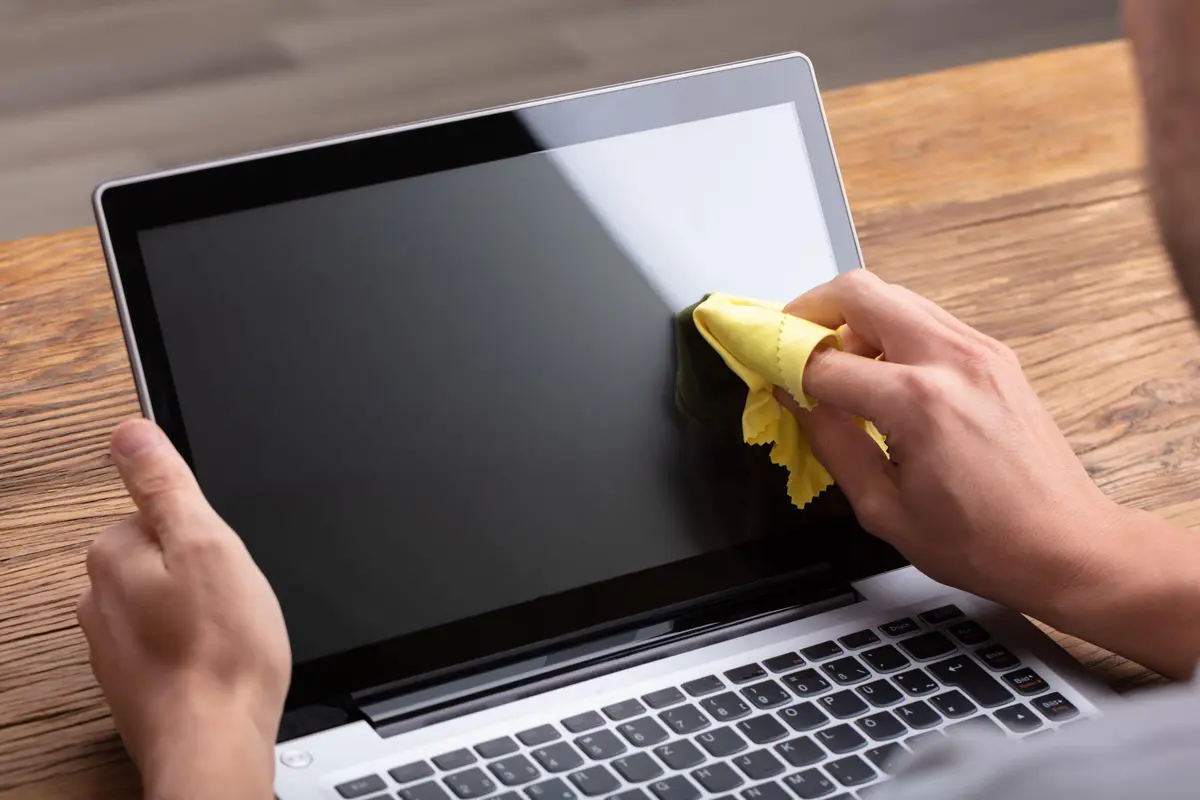
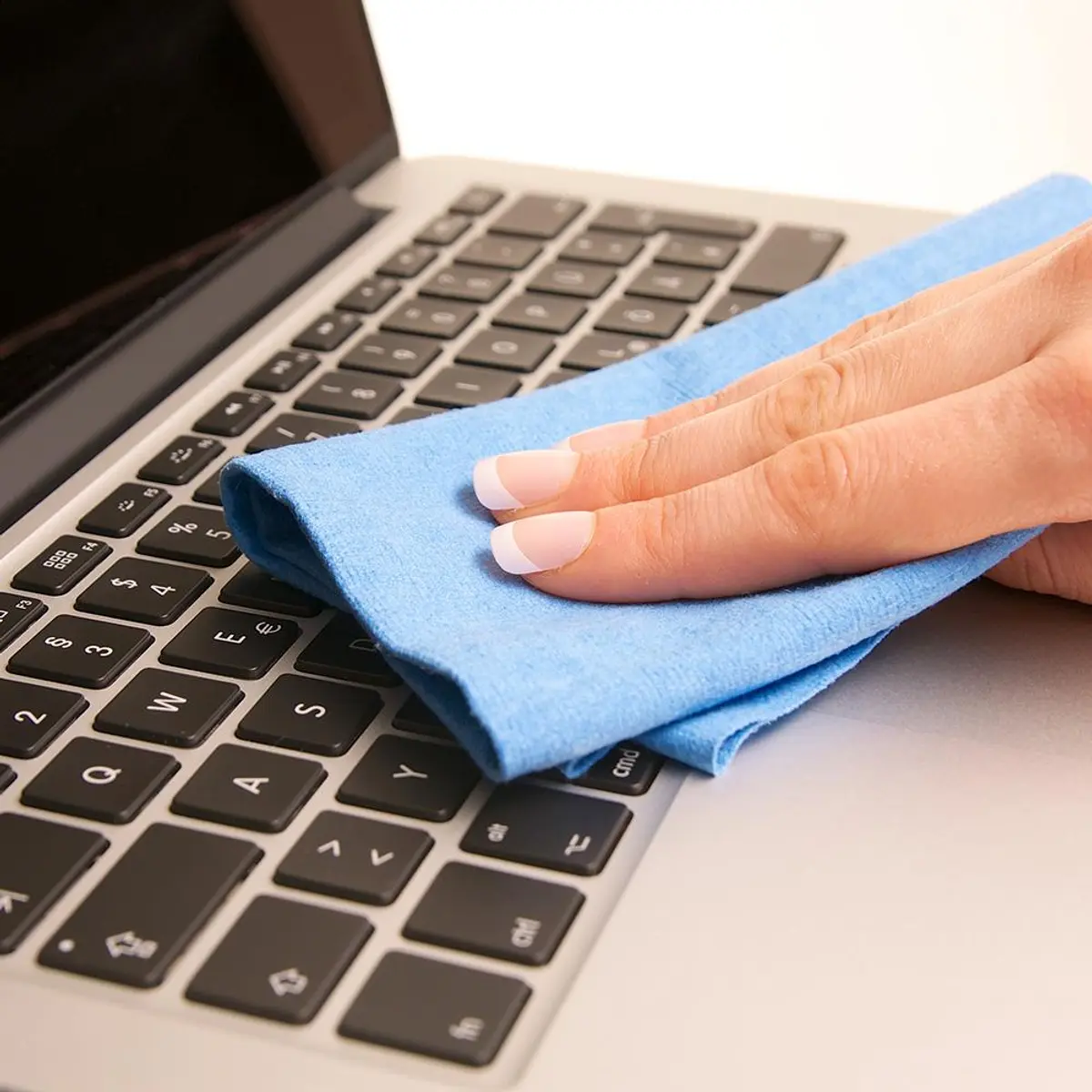
Dust, fingerprints, and crumbs can build up on your laptop over time. Regular gentle cleaning keeps it looking good and helps prevent debris from collecting around the keyboard and openings.
What you can do:
Turn off your laptop and unplug the charger before cleaning.
Use a clean, soft microfiber cloth to wipe the screen and exterior.
For stubborn marks, follow your laptop manufacturer's cleaning instructions.
Keep food, drinks, and dusty materials away from your laptop.
Avoid: spraying liquid directly onto the screen or keyboard, using rough paper towels, or applying household glass cleaners unless the manufacturer explicitly says they are safe.
You don't need to clean your laptop every day. A quick wipe when it looks dirty and a more thorough exterior clean every week or two is usually a practical routine.
2. Give Your Laptop Room to Breathe
Does your laptop get hot when you use it? Some warmth is normal, especially during gaming, video editing, or other demanding tasks. However, blocking the cooling vents can make it harder for the laptop to release heat.
Follow these simple habits:
Use your laptop on a hard, flat surface such as a desk.
Avoid using it on blankets, pillows, or thick bedding that can block air vents.
Keep the sides and underside clear of dust and obstructions.
Close demanding applications when you no longer need them.
If the fan becomes unusually loud, the laptop repeatedly shuts down from overheating, or the computer becomes extremely hot during light use, it may need professional inspection.
3. Take Care of Your Battery
Your battery is one of the most important parts of your laptop. Its capacity naturally decreases as it ages, but sensible charging and temperature habits can help you avoid unnecessary stress.
Here is what you can do:
Use a compatible charger that meets your laptop's requirements.
Avoid leaving your laptop in a hot car or direct sunlight.
If your laptop has a battery conservation or charge-limit feature, consider using it when you spend most of your time plugged in.
Don't worry about occasionally charging to 100%. You don't need to follow a complicated charging routine for everyday use.
Modern laptops manage charging electronically, so you generally don't need to drain the battery completely before charging it again.
Important: If the battery or laptop case starts swelling, the trackpad lifts, or the casing separates, stop using and charging the laptop. Do not press, puncture, or attempt to remove a swollen battery yourself. Get professional help.
4. Keep Your Software Updated
Software updates are not just about new features. They can also include security fixes, bug fixes, and improvements to compatibility.
For Windows laptops:
Open Settings → Windows Update.
Check for available updates.
Save your work before restarting.
Install updates from Windows Update or the laptop manufacturer's official support application.
For MacBooks:
Open System Settings → General → Software Update.
Check for available macOS updates.
Avoid downloading updates or driver installers from unknown websites. If a firmware or BIOS update is needed, follow the manufacturer's instructions carefully and make sure power is stable before starting.
5. Keep Enough Storage Space Free
A nearly full storage drive can make some tasks more difficult, prevent updates from installing, and leave little room for temporary files.
You can manage your storage without being a computer expert:
Delete files you no longer need.
Empty the Recycle Bin or Trash after checking its contents.
Remove applications you no longer use.
Move large photos and videos to a trusted external drive or cloud storage.
Use your operating system's built-in storage cleanup tools.
Be careful not to delete unfamiliar system folders or files just because they take up space. If you're unsure what something does, leave it alone.
6. Protect Your Laptop From Physical Damage
Many laptop problems begin with small accidents: a charger pulled off a table, a laptop squeezed inside a crowded bag, or a drink spilled near the keyboard.
Build these habits into your daily routine:
Carry your laptop in a padded sleeve or laptop compartment.
Hold it securely with both hands when moving it.
Don't pick it up by the screen.
Keep drinks away from the keyboard.
Don't place heavy objects on top of a closed laptop.
Check that nothing is sitting on the keyboard before closing the lid.
If you spill liquid on your laptop, turn it off if you can do so safely, disconnect the charger, and seek professional advice. Don't keep turning it on to see whether it still works, and don't use a hair dryer to try to dry it.
7. Keep Your Files Safe
A laptop can develop a fault even when you take excellent care of it. That's why protecting your files is just as important as maintaining the hardware.
A simple backup routine includes:
Backing up important documents, photos, and school or work files.
Using a trusted cloud service or external drive.
Checking occasionally that your backed-up files can actually be opened.
Keeping more than one copy of files that would be difficult to replace.
Don't wait until your laptop stops working to think about backups. A backup is useful only if your important files are already saved somewhere else.
8. Keep Your Laptop Secure
Malware, fake downloads, and stolen passwords can cause problems that have nothing to do with the laptop's physical condition.
Protect yourself by:
Using a strong password or passkey where supported.
Enabling automatic security updates.
Keeping built-in security protection enabled.
Downloading software from official websites or trusted app stores.
Avoiding suspicious links, attachments, and unexpected downloads.
Locking your screen when you leave your laptop unattended.
You don't need to install several security applications. Start with the security tools built into your operating system and avoid installing software from sources you don't trust.
9. Restart Your Laptop When Needed
If your laptop becomes sluggish, an application stops responding, or an update requires a restart, restarting can help clear temporary software problems.
However, restarting isn't a substitute for fixing every issue. If the laptop remains slow, overheats, freezes frequently, or makes unusual noises, investigate the cause rather than repeatedly restarting it.
Also, don't leave dozens of applications running if you no longer need them. Closing unused programs and browser tabs can help reduce unnecessary resource use.
10. Know When to Ask for Professional Help
Home maintenance is useful, but not every laptop problem is suitable for DIY repair.
Seek professional help if you notice:
A swollen battery or a case that is separating.
A burning smell, smoke, or unusual electrical noises.
Repeated overheating or unexpected shutdowns.
Liquid entering the laptop.
A damaged charging port or power connector.
Clicking or grinding noises from a mechanical hard drive.
A cracked screen, damaged hinge, or loose internal component.
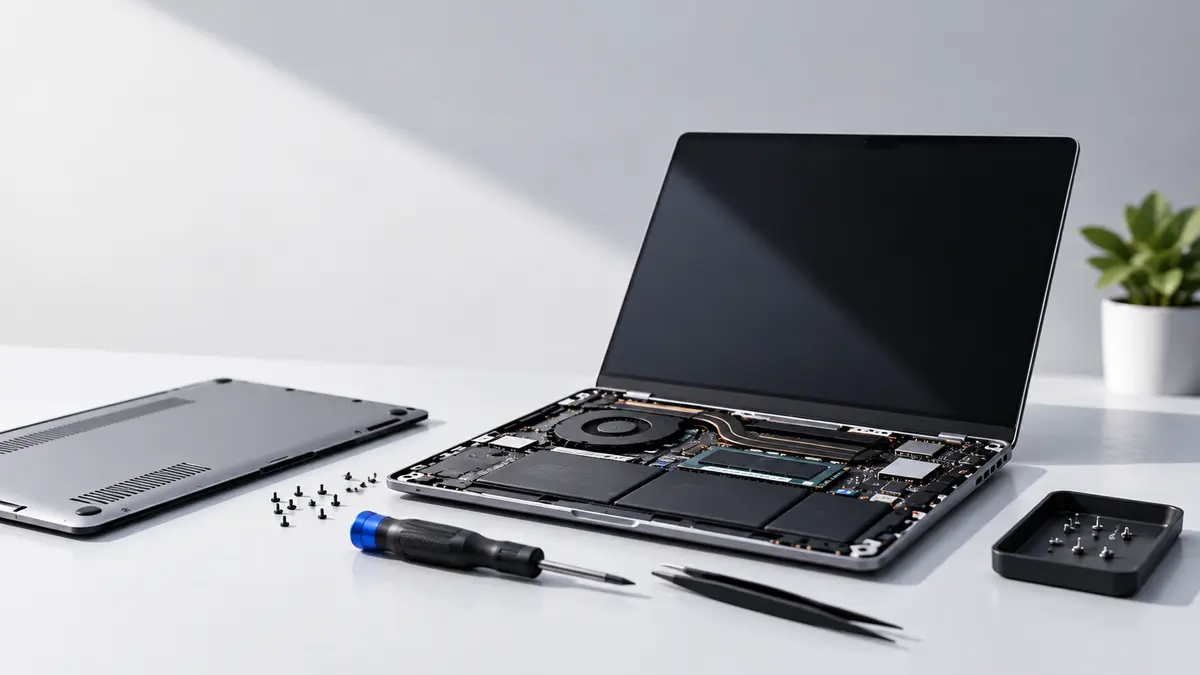
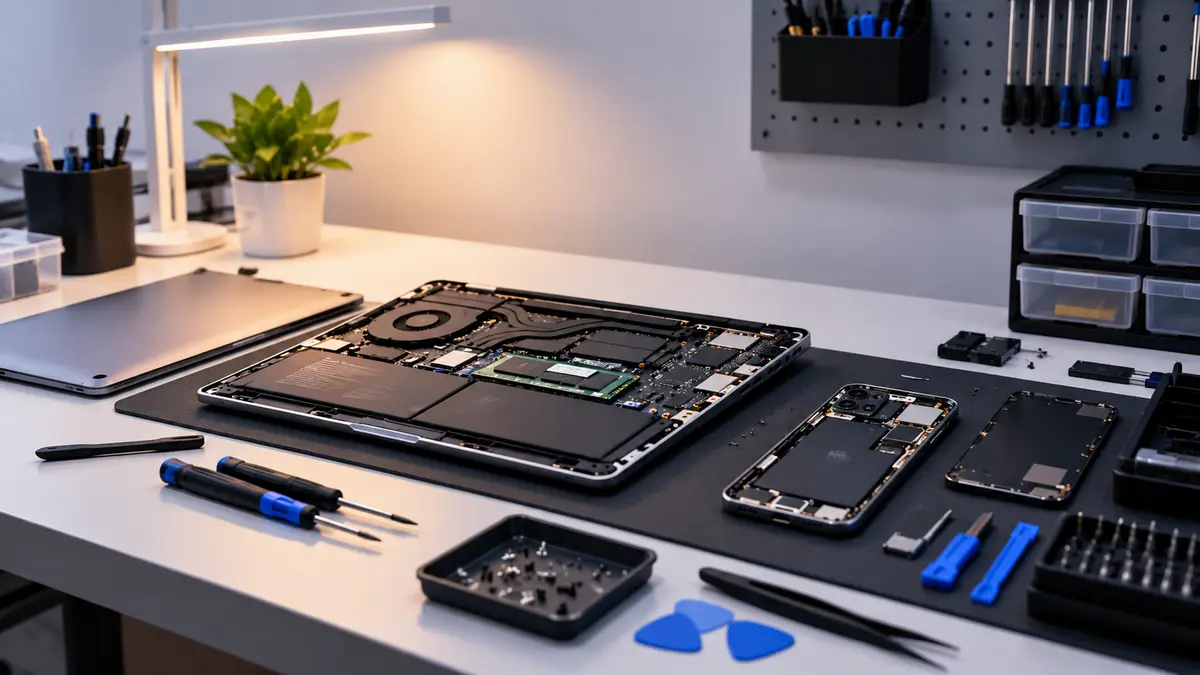
Avoid opening the laptop, disconnecting its internal battery, or attempting board-level repairs unless you have the appropriate skills and equipment. Simple maintenance should not turn into a more expensive repair.