Things You Should Know Before Buying a Second-Hand Laptop
Buying a second-hand laptop can help you get a more powerful machine for less money. However, a laptop can look perfectly fine from the outside while having problems with its battery, display, keyboard, storage, cooling system, or internal components.
Before paying for a second-hand laptop, there are a few important things you should always check.
1. Check the Laptop's Exact Model
Don't buy a laptop just because the seller says it is a "Dell i5" or "HP i7."
Check the exact model and model number.
This helps you know:
Which generation the processor belongs to
What type of RAM it uses
Storage options
Display specifications
Original configuration
Upgrade options
Two laptops with the same Intel Core i5 processor name can still have very different generations and performance.
2. Check the Battery Health
Battery condition is very important when buying a second-hand laptop.
A laptop may work perfectly while its battery has already lost a significant amount of its original capacity.
Check:
Battery health
Battery capacity
Battery cycle count, if available
Whether the battery is original
How quickly the battery drains
A weak battery doesn't necessarily mean you should reject the laptop, but you should know about it before buying.
3. Check the Display Carefully
Turn the laptop on and inspect the screen carefully.
Look for:
Dead pixels
Bright or dark spots
Flickering
Lines on the screen
Uneven brightness
Screen discoloration
Cracks
Loose or damaged hinges
Open and close the lid several times and make sure the hinges feel secure.
4. Test the Keyboard and Touchpad
Don't forget to test every key.
Open a text editor and check:
All letter keys
Number keys
Function keys
Arrow keys
Enter and Space keys
Backspace
Touchpad
Left and right click
A keyboard problem can be annoying and expensive to repair.
5. Check the Processor, RAM and Storage
Check the actual hardware installed in the laptop.
Make sure the specifications match what the seller advertised.
Check:
Processor: Model and generation
RAM: Capacity and type
Storage: SSD or HDD and its capacity
For example, don't assume that every "Core i5" laptop has the same performance. The generation and exact processor model matter.
6. Check the SSD or Hard Drive
Storage health is especially important in a second-hand laptop.
An old or heavily used drive can eventually cause slow performance or data loss.
Check:
SSD/HDD health
Storage capacity
Read/write performance
Whether the drive is recognized correctly
If possible, check the drive's health using appropriate diagnostic software.
7. Check the Ports and Connectivity
Test the laptop's important ports before buying.
Check:
USB ports
USB-C
HDMI
Headphone jack
SD card slot, if available
Charging port
Wi-Fi
Bluetooth
Connect actual devices where possible rather than simply looking at the ports.
8. Check the Webcam, Speakers and Microphone
These are easy to forget.
Open the camera application and check the webcam.
Play some audio through the speakers and make a test recording to check the microphone.
This is especially important if you use the laptop for:
Online Classes
Meetings
Video Calls
Content Creation
9. Check for Overheating and Fan Problems
Use the laptop for a few minutes instead of checking it only when it is cold.
Listen for:
Unusually loud fans
Clicking or grinding sounds
Constant high fan speed
Also check whether the laptop becomes unusually hot during normal use.
Excessive heat can indicate problems with the cooling system, dust buildup, thermal paste, or other components.
10. Check Windows Activation and Reset the Laptop
Before completing the purchase, make sure Windows is properly activated. Also make sure the previous owner's accounts and personal data are removed. Ideally, the laptop should be reset and ready for the new owner. If the laptop is protected by an organization or company management system, ask the seller to remove it before purchasing.
Don't Buy Based Only on Looks
A clean-looking laptop isn't necessarily a good laptop.
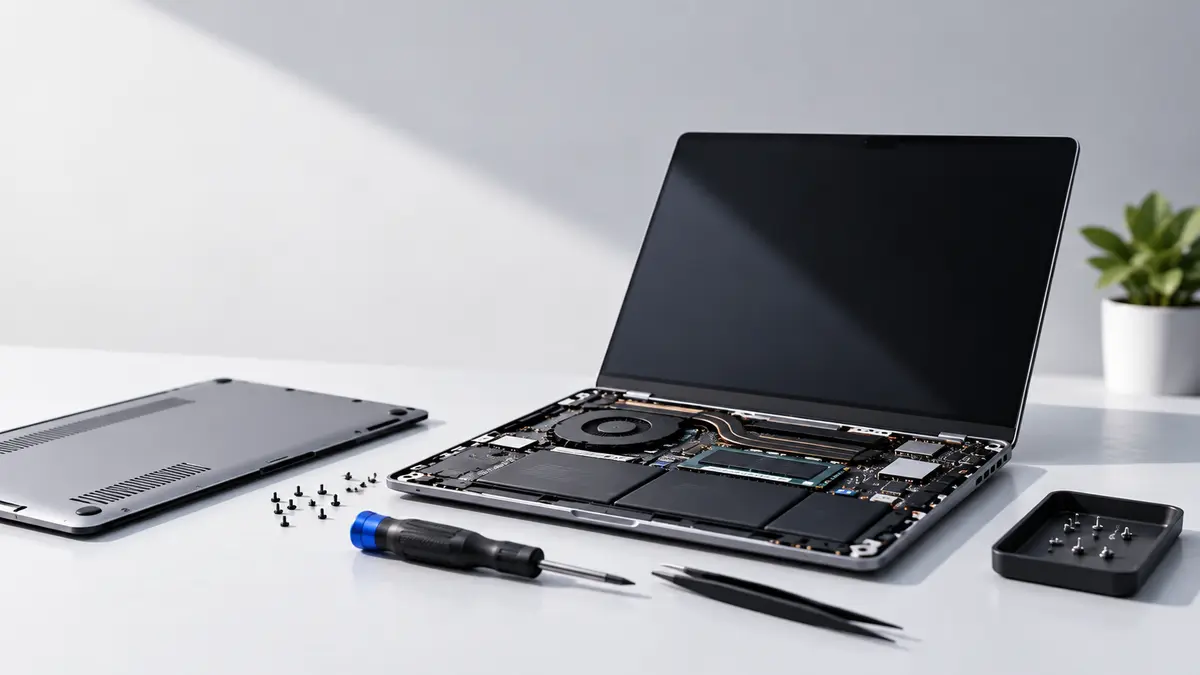
A laptop with a few scratches may have excellent internal components, while a laptop that looks almost new could have a weak battery, damaged storage, overheating issues, or other problems.
That's why you should check both the physical condition and the internal hardware.
Final Checklist
Before buying a second-hand laptop, remember these checks:
Exact Model — Verify the actual model and configuration.
Battery — Check battery health and condition.
Display — Look for pixels, lines, flickering and damage.
Keyboard & Touchpad — Test everything.
Processor, RAM & Storage — Verify the actual specifications.
Storage Health — Check SSD/HDD condition.
Ports & Connectivity — Test USB, HDMI, Wi-Fi, Bluetooth and charging.
Camera, Speakers & Mic — Test them.
Cooling — Check temperature and fan noise.
Windows & Accounts — Make sure the laptop is properly reset and ready for you.
The main rule:
Don't buy a second-hand laptop just because it looks good or has a low price. Check what is inside, test what works, and understand its history before you pay.